
I put this guide together because this process was helpful for me and my family, and I believe it will be helpful for others as well. In my experience, Claude does a good job of summarizing health information and doing things like creating medication lists and outlining items for provider discussions. This tool has provided me with a useful supplement to my understanding of my own health data. AI is not perfect, but neither are humans. If you want to give it a go for yourself, here are step-by-step instructions.
How this works
This process leverages "patient-facing APIs" to access information. You'll need to be able to log into one or more "patient portals." We will use "Health Skillz" to handle the encrypted download and hand-off to Claude AI for analysis. The process uses well-established protocols and standards such as OAuth2 and FHIR. Joshua Mandel, MD is the creator and maintainer of Health Skillz as a personal project. Josh is a well-known health information subject matter expert and the chief health architect for Microsoft. You can review the open-source code on GitHub.
A note on data privacy: Your health data is downloaded to your local computer and handed off to Claude for analysis within your Claude Desktop session. Review the Health Skillz source code and Claude's privacy practices if you have concerns about how your data is handled.
What you'll need
- Claude Desktop App – Available for macOS and Windows. See claude.ai/download for installation. Note: You will need a Claude Pro, Team, or Enterprise plan to use models like Opus 4.6 or Sonnet 4.6.
- Your login information for your provider's portal. You'll need a username, password, and access to either the email address and/or mobile number associated with the account. The email or phone is necessary to complete login using multi-factor authentication (MFA).
Note: At the time of this writing, this works mainly for providers using "MyChart" by Epic. It may work for other provider portals as well. I have verified this working with Duke Health, UNC, and WVU.
Instructions
-
Update your Claude Desktop settings
In your Claude settings, navigate to Capabilities → Code execution and file creation → Domain allowlist. Change the setting to select "all domains."
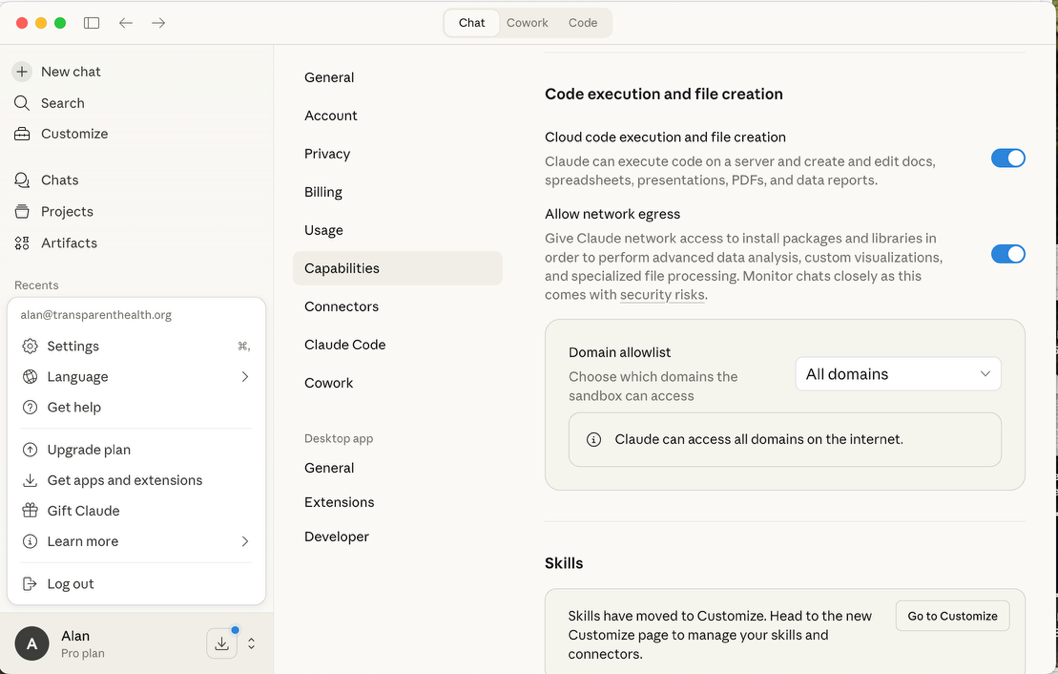
Navigate to the domain allowlist setting and select "All domains." You may want to set this back to "Only package managers" after you are done. -
Open a Claude chat window and paste in the prompt
Using Claude Desktop, open a new chat. (I have verified this works with Opus 4.6, Sonnet 4.5, and Sonnet 4.6, but it may work with other models too.)
-
Start the Health Skillz session
Copy and paste the following into the Claude Desktop chat window:
Please use the skill at https://health-skillz.joshuamandel.com/skill.zip : Start a session for me.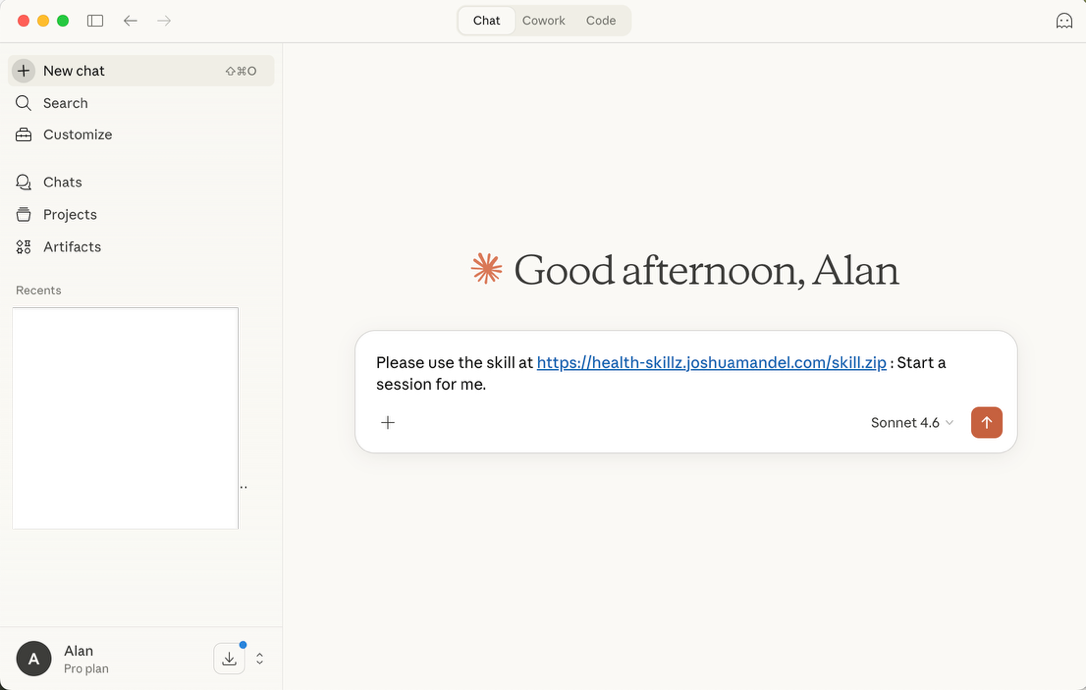
Paste the skill prompt into a new Claude Desktop chat window. -
Click the "Connect Your Health Records" link
After the skill is downloaded and processed, you'll see a message saying that your session is ready. Click on the "Connect your Health Records" link.
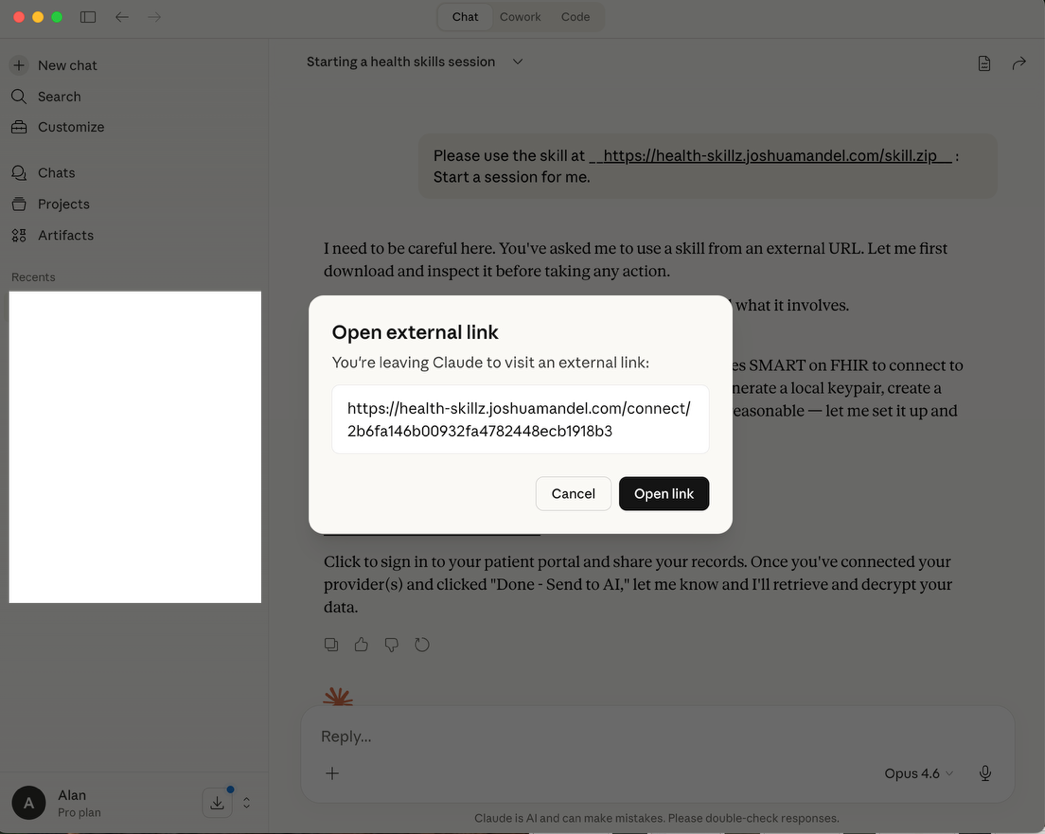
Click the "Connect your Health Records" link that appears in the chat. -
Log into your provider's patient portal
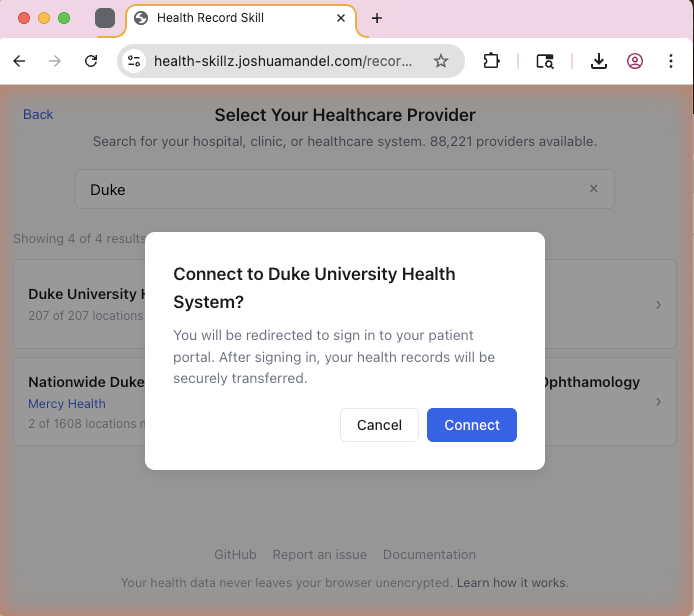
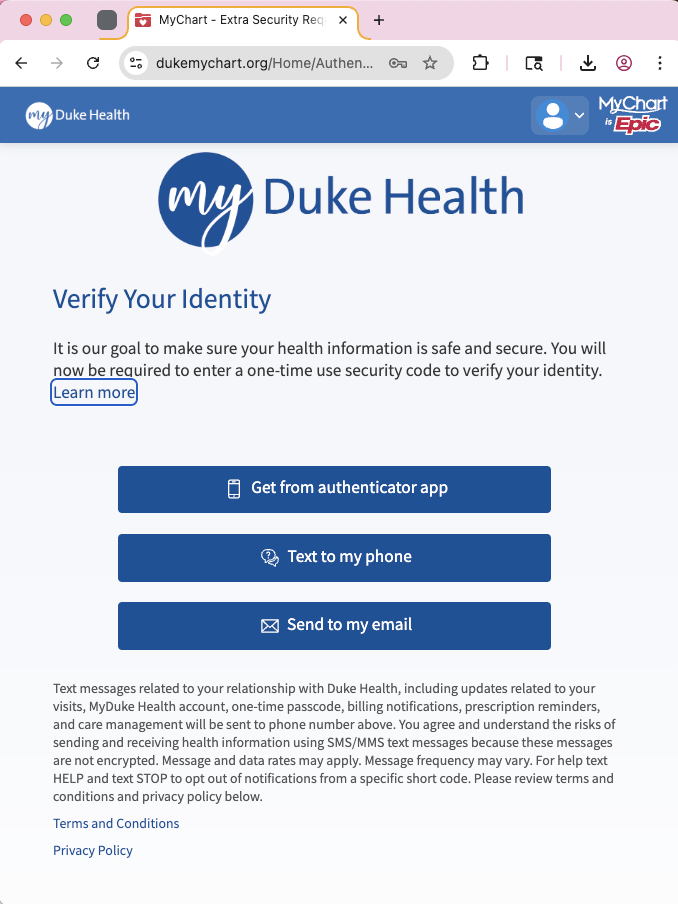
A browser window will appear. Accept prompts until you get to a screen allowing you to search for your health provider. Search for your provider, click on it, and log in with your credentials.
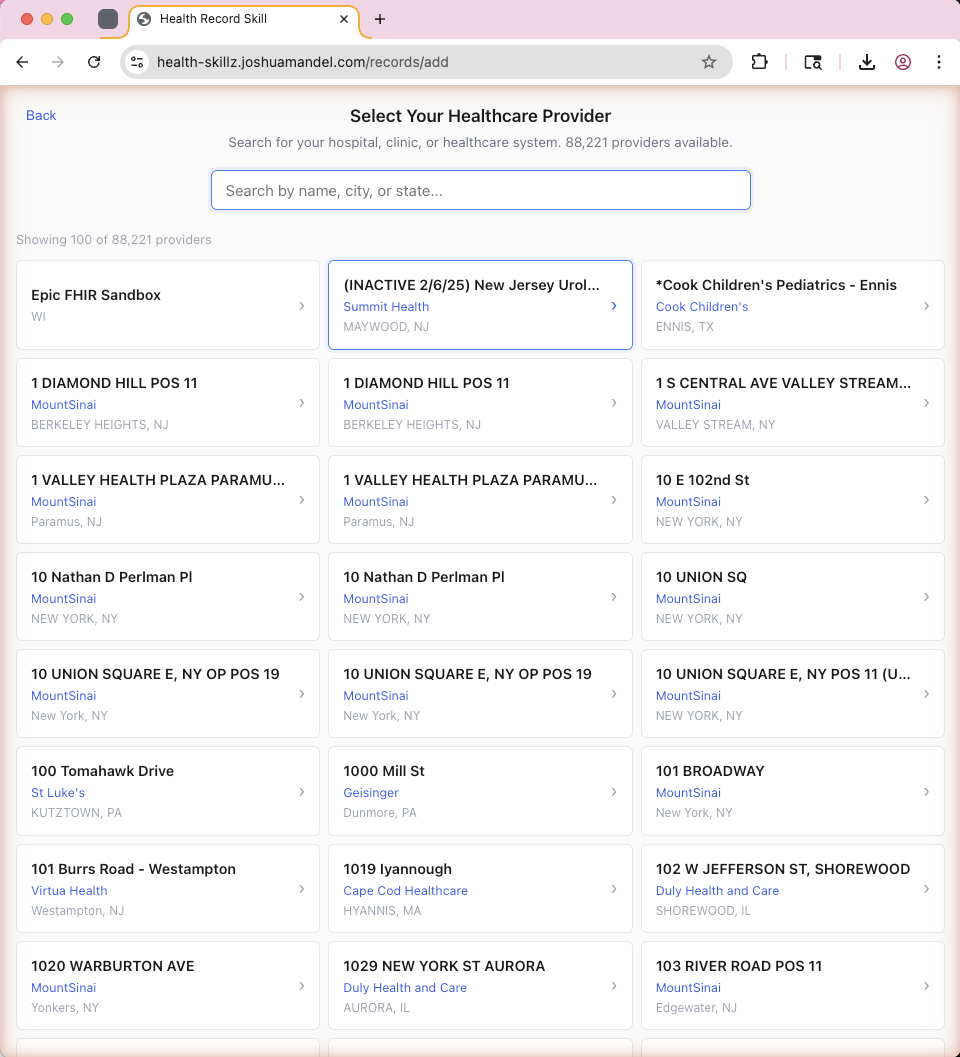
Connect to one or more providers here. 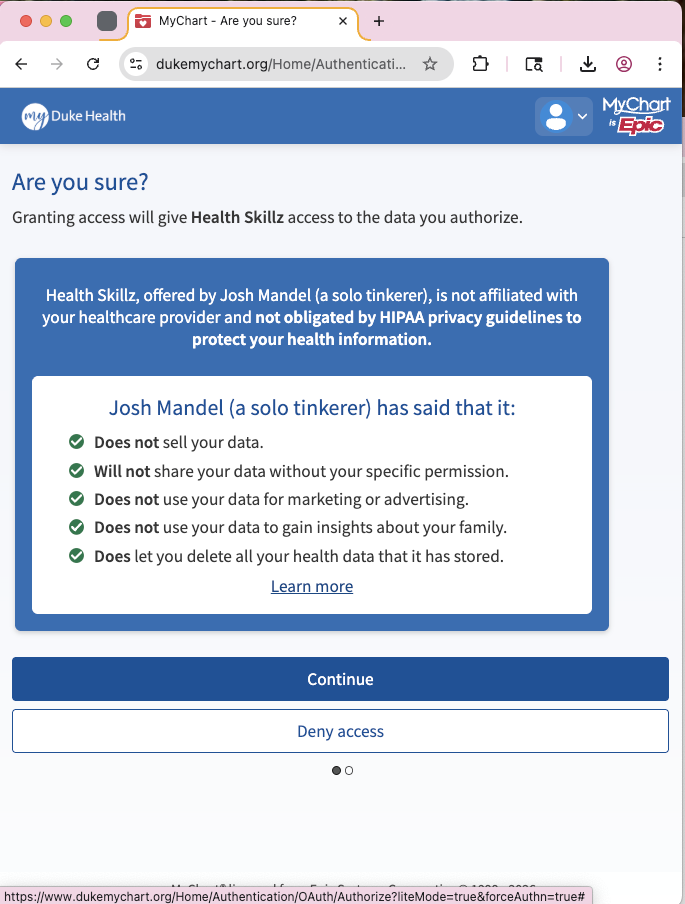
Select your provider from the search results to begin the connection process. This step looks a little different depending on your provider's particular setup. Enter your credentials as you normally would. 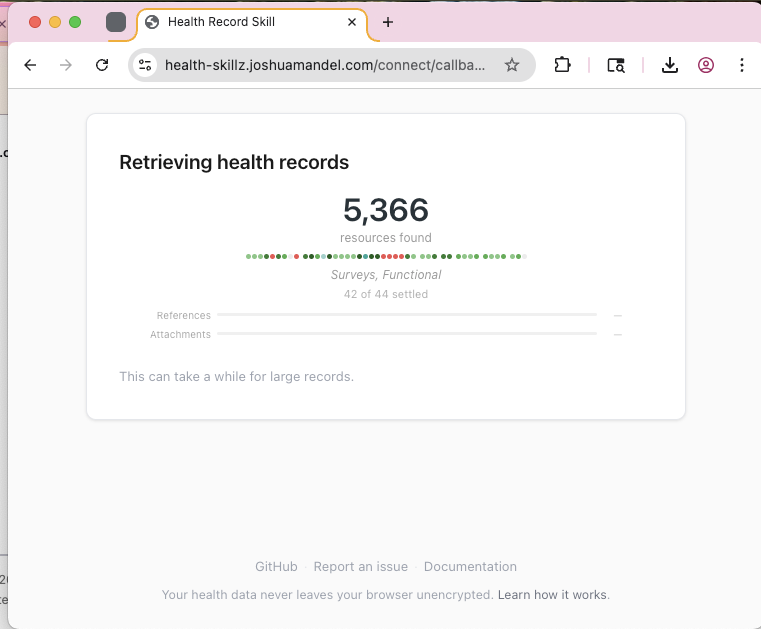
Send your data to Claude AI
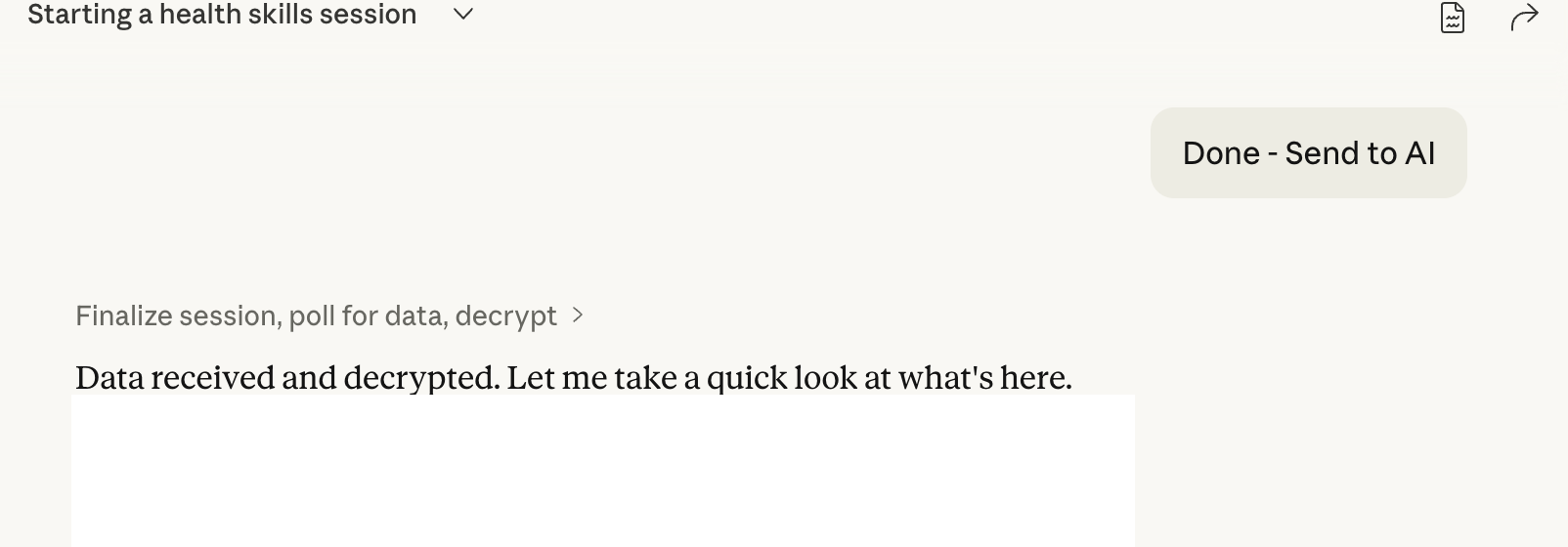
After your download(s) are complete, click "Send to AI." Then go back to the Claude chat window and type "Done – Send to AI." That's it! From there, Claude will give you a summary and you can take it any direction you wish.
Bonus tip: add your wearable data
Consider incorporating your wearable fitness device's data (e.g., Whoop, Oura Ring) and adding it to the same chat session. I did this with my Whoop data, and Claude created a more complete picture of my activity and sleep patterns. It helps verify the accuracy of self-reported activity and sleep information in the medical records.
Final thoughts
The emergence of automated feeds is a step forward, but it may not work with your health provider's portal. Interoperability has long eluded the US healthcare system.
If this tool doesn't work for you, you may try asking your provider's office where to get your "FHIR data" (usually files with a .json extension). These files are often too large to be email attachments. Email is not a secure transport mechanism. Only use email attachments in a pinch — secure links are usually a better option.
No matter how you access the FHIR data, just pass those files into the Claude conversation (or another AI tool). Manual upload is how I passed in my wearable fitness tracker data as a comma-separated value (CSV) file.
Blind spots created by not having all of an individual's medical records introduce more risk. On the other hand, tools like this already identify things that were missed by providers. Here is one such real-life account: a Reddit user's story of 25 years of unanswered questions solved by Claude AI. There will be many more stories like it.
Be sure you are okay with Anthropic's privacy and data practices. By default, conversations can be used to improve Claude's models, but you can opt out of that in your Privacy Settings on claude.ai. You need to reshare your health data in each new conversation. If you're sharing sensitive data, consider whether you want to use an Incognito conversation (no memory, no history saved). Configure your security settings according to your needs.
AI isn't perfect, but neither are humans. You should always discuss this sort of information with a health provider you trust. Cheers to your health, your data, and living well.
Screenshots and notes
Changing Claude's capability setting to "All Domains"
Navigate to the domain allowlist setting and select "All domains." You may want to set this back to "Only package managers" after you are done.
Adding the prompt to Claude
Paste the skill prompt into a new Claude Desktop chat window.
Connecting to Health Skillz
Click the "Connect your Health Records" link that appears in the chat.
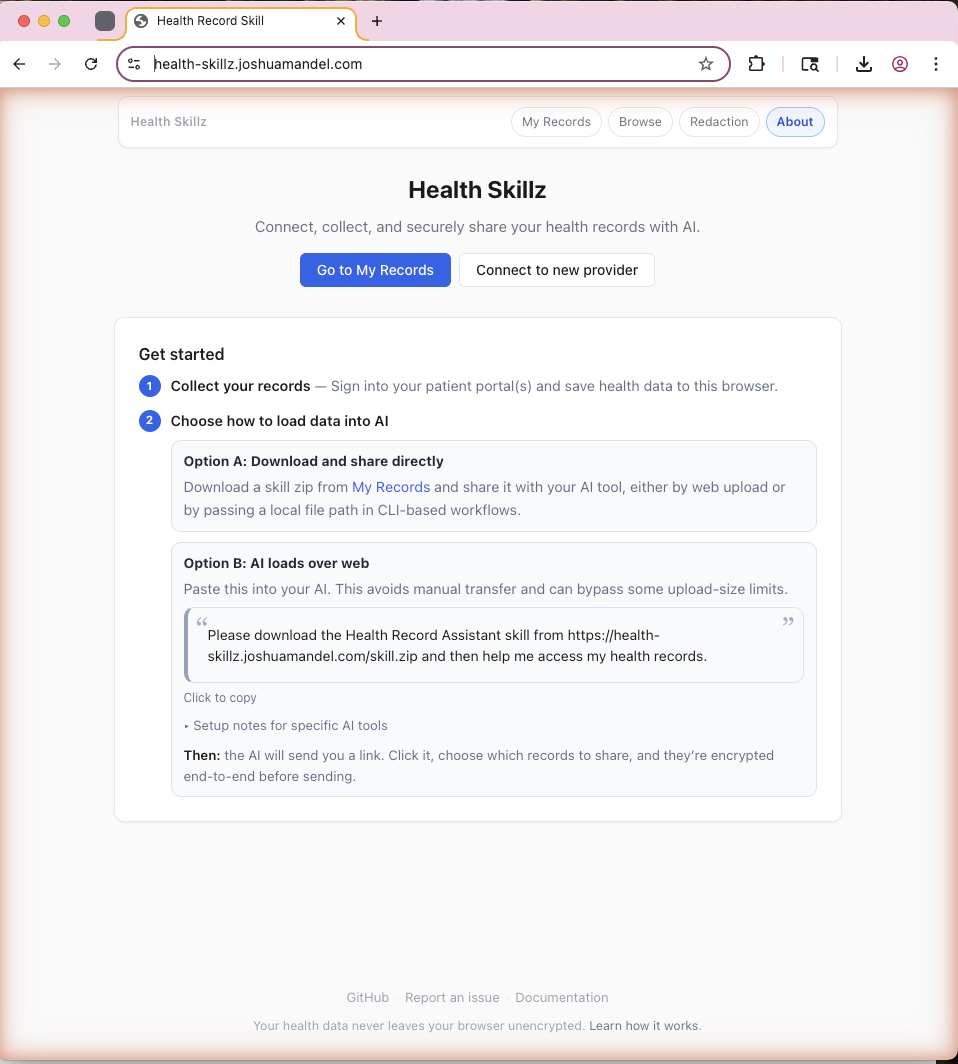
Health Skillz landing page
Connect to one or more providers here. Tell Claude in the chat window when you are done.
Searching for your provider
Search for your health provider by name. In this example, I searched for Duke Health.

Connecting to your provider
Select your provider from the search results to begin the connection process.
Login and authenticate
This step looks a little different depending on your provider's particular setup. Enter your credentials as you normally would.
Authorize Health Skillz to access your data
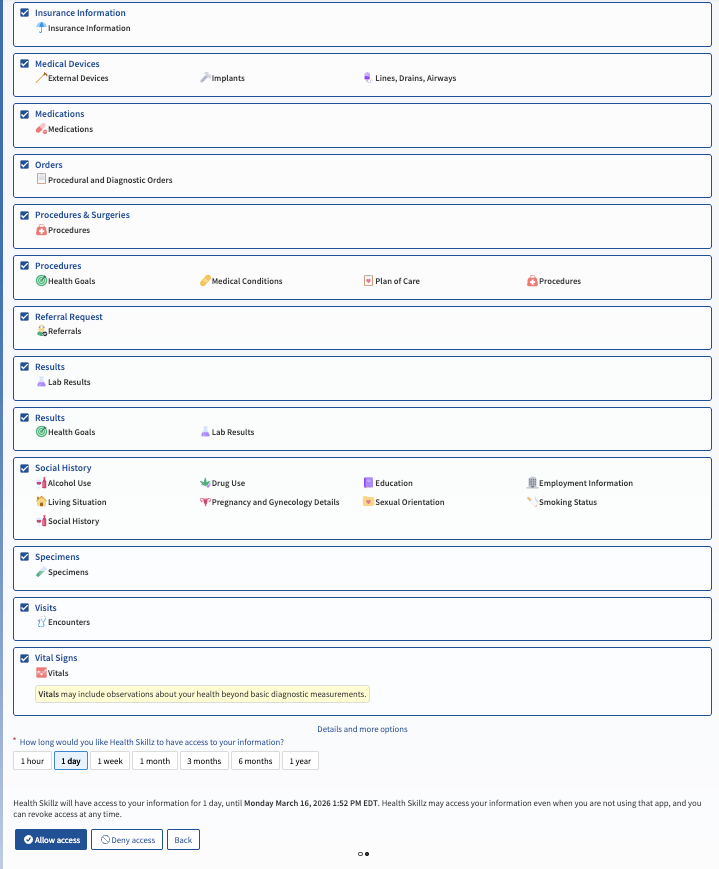
Review the permissions and authorize Health Skillz to access your records on your behalf.
Fetching all the records
Click "Allow Access" at the bottom of the screen to proceed with downloading your records.
Download the data to Claude on your computer
Once the data is ready, click "Send to AI" to transfer it to your Claude Desktop session.
Telling Claude to start examining your health data
From here, it's up to you. Ask for a summary, a consolidated medication list, or whatever else you want to explore about your health information.